Download Google Sheets as Excel (XLSX) — Free & Instant
Want to download a Google Sheet as an Excel file? This step-by-step guide shows you the fastest way to download any Google Sheet as XLSX — the native Microsoft Excel format — free, in seconds, with no Google account required. Works on any device including iPhone, Android, Windows, and Mac.
⚡ Quick Answer
Copy your Google Sheets URL → go to SheetsBox.com, a free Google Sheets to Excel converter → paste the link → click XLSX → click Download. Your Excel file downloads instantly, and the same steps work for any Google spreadsheet. The sheet must be publicly shared first.
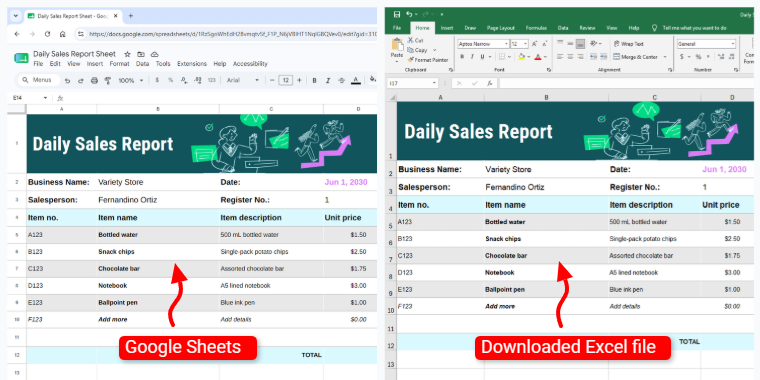
Left: Original Google Sheet in browser · Right: Downloaded Excel (XLSX) file in Microsoft Excel
Method 1 — How to Convert Google Sheets to Excel with SheetsBox (No Login Needed)
The fastest way to convert a Google Sheet to Excel is with a free online tool that needs no sign-in. There's nothing to install — paste the link, pick XLSX, and download the Excel file in seconds.
SheetsBox is a free online Google Sheets downloader. Paste any public Google Sheets link and download it as XLSX in one click — no Google account, no extension, no installation.
Copy the Google Sheets URL
Open the Google Sheet in your browser and copy the full URL from the address bar. It should look like: https://docs.google.com/spreadsheets/d/...
Go to SheetsBox and paste the URL
Visit sheetsbox.com and paste the URL into the input field. Click the Paste button or use Ctrl+V (Windows) / Cmd+V (Mac).
Select XLSX and download
Click the XLSX format button — it's selected by default. Then click Download. Your Excel file downloads instantly to your device.
gid= parameter that SheetsBox uses to download just that tab. Learn more →Method 2 — How to Save a Google Sheet as Excel Inside Google Sheets
If you're signed into your Google account and have edit access, you can download directly from Google Sheets:
📥 Built-in Export Requires login
Open your Google Sheet → click File in the menu → hover over Download → select Microsoft Excel (.xlsx). The file downloads to your computer immediately. Note: this method requires you to be signed into a Google account with access to the sheet.
SheetsBox vs Google Sheets Built-in Export
| Feature | SheetsBox | Google Sheets Export |
|---|---|---|
| Requires Google login | ❌ No | ✅ Yes |
| Works on any device | ✅ Yes | ✅ Yes |
| Download specific tab | ✅ Yes (via gid=) | ✅ Yes |
| Supports XLSX, CSV, PDF, ODS | ✅ All formats | ✅ All formats |
| Share a download link | ✅ Yes | ❌ No |
| Free | ✅ Always | ✅ Always |
What's Included in the XLSX File?
When you download a Google Sheet as XLSX using SheetsBox, the exported file includes:
All worksheet tabs — every tab in the Google Sheet becomes a separate worksheet in the Excel file. No tabs are lost.
Formulas — standard spreadsheet formulas (SUM, IF, VLOOKUP, COUNTIF, INDEX/MATCH etc.) are all preserved and remain editable in Excel. Google-specific functions like GOOGLEFINANCE won't work in Excel but all standard logic is kept.
Cell formatting — fonts, colours, bold/italic, borders, background fill, number formats, date formats, and text alignment are all preserved.
Column widths and row heights — the layout of your spreadsheet is maintained as closely as possible in the Excel format.
How to convert Google Sheets to Excel without losing formatting
This is the concern most people have, and the good news is that XLSX is the format that preserves the most. When you download as XLSX (rather than CSV), your fonts, colours, borders, number formats, merged cells, and multiple tabs all carry over into Excel. To keep formatting intact, always choose XLSX — not CSV, which strips everything down to plain values.
A few things behave differently between the two apps, and it's worth knowing which: Google-specific functions like GOOGLEFINANCE, IMPORTRANGE, and GOOGLETRANSLATE have no Excel equivalent, so those cells show their last calculated value instead of a live formula. Charts usually transfer but may render slightly differently. Conditional formatting rules mostly carry over. For the vast majority of spreadsheets — data, standard formulas, styling — the Excel file looks and works just like the original.
Can you convert Google Sheets to Excel?
Yes — a Google Sheet can be converted to Excel (.xlsx) in a few seconds, and you don't need Microsoft Excel installed to do the conversion. With SheetsBox you don't even need a Google account, as long as the sheet is shared publicly. The converted file opens in Excel, LibreOffice, Apple Numbers, or any app that reads XLSX. Google Sheets and Excel use different underlying formats, but the two are highly compatible, so converting between them is reliable and lossless for standard spreadsheets.
Frequently Asked Questions
Can I download a Google Sheet as Excel without a Google account?
Yes. SheetsBox lets you download any publicly shared Google Sheet as Excel without signing into Google. Just paste the link and click XLSX. See our guide on downloading without a Google account.
Does formatting stay intact when downloading as Excel?
Yes. The XLSX export preserves cell formatting, fonts, colours, borders, and formulas. Very complex features like custom scripts or Google-specific charts may differ slightly, but all standard spreadsheet formatting is preserved.
Can I download a specific worksheet tab as Excel?
Yes. Click the tab you want in Google Sheets, then copy the URL from your browser. Paste that URL into SheetsBox. However, for XLSX format, Google actually includes all tabs regardless — each becomes a separate sheet in the Excel workbook. See our specific tab guide.
My Google Sheet download failed — what do I do?
The most common cause is the sheet is set to "Restricted" (private). Ask the sheet owner to change sharing to "Anyone with the link can view". See our full troubleshooting guide.
Does it work on iPhone and Android?
Yes. SheetsBox works in any modern browser on any device. On iPhone, use Safari. On Android, use Chrome. The XLSX file will download to your Files app (iPhone) or Downloads folder (Android). See our iPhone guide and Android guide.
Is there a file size limit for XLSX downloads?
SheetsBox uses Google's own export API, so limits are set by Google's servers. Very large sheets with millions of cells may time out, but for everyday spreadsheets there are no practical size restrictions.
Download your Google Sheet as Excel now
Paste the link, click XLSX, get your file. Free, instant, no login.
Download as Excel Free →