Download Google Sheets as Excel, CSV, PDF or ODS - Free
The free online spreadsheet downloader. Paste any Google Sheets link and download it instantly as Excel, CSV, PDF, or ODS. No account needed.
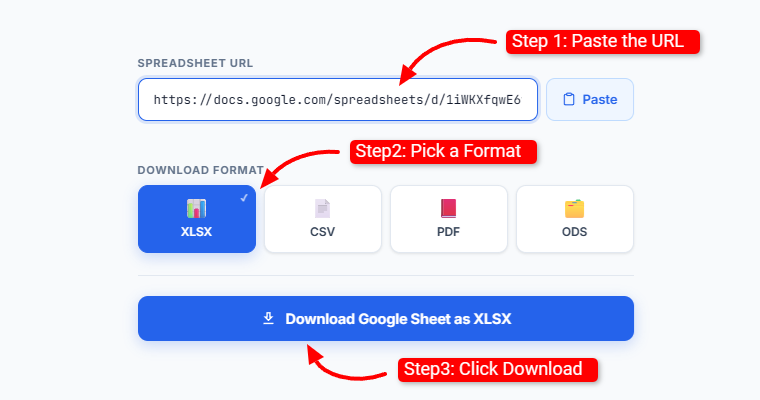
How to Download a Google Spreadsheet
Three steps. No account. No waiting.
Paste the URL
Copy any public Google Sheets link and paste it into the box above.
Pick a format
Choose XLSX, CSV, PDF, or ODS — whichever suits your workflow.
Instant download
Your file downloads immediately — no account or sign-in required.
No data collected
Works in seconds
Free forever
Works on mobile
About SheetsBox - Free Google Spreadsheet Downloader
SheetsBox is a free online spreadsheet downloader that lets you download any Google Sheet directly from a link — in the format you actually need. Export to Excel (XLSX), CSV, PDF, or ODS with one click. No Google account required, no installation, no sign-up.
Whether you call it a Google Sheets downloader, a Google spreadsheet downloader, or just a sheet downloader — SheetsBox does one thing and does it well. Paste the Google Sheets link, pick your format, and your file downloads in seconds. Your data goes directly from Google's servers to your device — we never see it.
SheetsBox is an independent tool and is not affiliated with Google LLC. Learn more about us →
Google Sheets Download Guides
Step-by-Step Guides to Download Spreadsheets in Every Format
A Google Sheets downloader is an online tool that lets you save a Google spreadsheet to your device as a file — without needing to be signed into a Google account. SheetsBox is a free Google Sheets downloader that works directly from any public Google Sheets link. Paste the URL, pick your format, and your file downloads in seconds.
People use Google Sheets downloaders for many reasons: sharing spreadsheets with people who don't have Google accounts, archiving data offline, importing data into databases or analytics tools, converting spreadsheets for use in Microsoft Excel or LibreOffice, or simply saving a local backup of an important file.
Supported Download Formats - Excel, CSV, PDF & ODS
SheetsBox supports four major spreadsheet downloader formats — covering every use case from editing and data imports to printing and open-source compatibility. Choose the format that matches your workflow, and your Google Sheet downloads instantly from the link.
XLSX is the native format for Microsoft Excel and is supported by virtually every spreadsheet application including LibreOffice Calc, Apple Numbers, and Google Sheets itself. When you download a Google Sheet as XLSX, all formulas, cell formatting, colours, fonts, and number formats are preserved. This is the best format if you or your recipient will be editing the spreadsheet after downloading.
XLSX is also the most universally compatible format — if you're unsure which format to choose, Excel (XLSX) is the safest default.
CSV (Comma-Separated Values) is a plain text format that stores spreadsheet data as rows and columns separated by commas. It contains no formatting, no formulas, and no styling — just the raw data. This makes CSV the ideal format for importing into databases, running Python or SQL queries, processing with data tools like Power BI or Tableau, or feeding data into APIs and scripts.
Note: CSV downloads only one tab at a time. If your sheet has multiple tabs, only the currently active tab (as determined by the gid= parameter in the URL) will be exported.
PDF downloads are ideal when you want to share or print a spreadsheet without allowing the recipient to edit it. PDF preserves the visual layout of your sheet exactly as it appears in Google Sheets — including formatting, colours, borders, and page breaks. PDFs open in any browser or PDF reader on any device, making them the most universally accessible format for read-only sharing.
Use PDF when sending reports, invoices, financial summaries, or any document where layout and appearance matter more than editability.
ODS (OpenDocument Spreadsheet) is the native format for LibreOffice Calc and OpenOffice Calc. If you or your team work with open-source office software, ODS is the preferred format. It preserves formulas and most formatting, and is fully supported by Microsoft Excel 2010 and later as well. Choose ODS when your workflow uses LibreOffice or any open-source spreadsheet tool.
Why Use SheetsBox Spreadsheet Downloader?
SheetsBox is built as the simplest free Google spreadsheet downloader online — no software, no extensions, no account. Here's why thousands of users choose SheetsBox to download Google Sheets from a link every day.
🔓
No Login Required
Download any public Google Sheet without signing into a Google account. Works for anyone with the link.
⚡
Instant Downloads
No queues, no processing delays. Your file downloads directly from Google's servers to your device in seconds.
🆓
Completely Free
No subscription, no trial, no credit card. SheetsBox is free to use with no usage limits — forever.
🔒
Privacy First
We never store, view, or transmit your spreadsheet data. Downloads are browser-to-Google direct connections.
📱
Works on Any Device
iPhone, Android, Windows, Mac, Chromebook — SheetsBox works in any modern browser on any device.
🔧
No Installation
No extension, no app, no software to install. Open the website, paste the link, download. That's it.
Common Google Sheets Download Problems & Solutions
Having trouble downloading a spreadsheet from a link? These are the most common issues users face when using a Google Sheets downloader — and exactly how to fix each one.
❌ "My Google Sheet won't download"
The sheet is most likely set to "Restricted" (private). Ask the sheet owner to go to Share → General access → change to "Anyone with the link can view". Once public, paste the link into SheetsBox and download. See our full guide: How to make a Google Sheet public.
❌ "Permission denied" error
This means the sheet requires a Google sign-in to view. SheetsBox only works with publicly shared sheets. The sheet owner needs to change the sharing settings to allow anyone with the link to view it.
❌ "The downloaded file is blank or empty"
Two possible causes: (1) The active tab in the sheet has no data — try switching to a different tab and copying the updated URL. (2) The URL doesn't include the correct gid= parameter — copy the URL directly from your browser while the sheet is open on the correct tab.
❌ "I downloaded the wrong worksheet tab"
SheetsBox uses the gid= parameter in the URL to determine which tab to download. Click the correct tab in Google Sheets first, then copy the URL from your browser address bar — the gid= value will update to match the active tab. Paste that updated URL into SheetsBox.
❌ "My CSV file has broken columns in Excel"
This happens when Excel expects a different delimiter (semicolons instead of commas) based on your regional settings. Fix: open Excel → Data tab → From Text/CSV → select the file → set delimiter to "Comma". Alternatively, open the CSV in Google Sheets first, which handles delimiter detection automatically.
❌ "The PDF is cut off or missing data"
Google's PDF export follows the print area settings of the sheet. If the sheet has a defined print area, only that area is included in the PDF. Ask the sheet owner to go to File → Print settings and make sure all data is included in the print range. Alternatively, use XLSX format to get all data without layout restrictions.
Google Sheets Downloader FAQs
Common questions about using SheetsBox to download Google spreadsheets from a link — free, without a Google account, on any device.
Yes, 100% free. SheetsBox is a free online spreadsheet downloader with no paid plans, no trial limits, and no hidden fees. Free for everyone, forever.
Yes. SheetsBox lets you download any Google Sheet directly from a link — no Google account needed. As long as the sheet is set to "Anyone with the link can view", paste the link and download instantly. See our guide on downloading without a Google account.
SheetsBox supports four formats: XLSX (Excel), CSV (plain text/data), PDF (for sharing or printing), and ODS (for LibreOffice and OpenOffice).
No. SheetsBox only works with publicly shared Google Sheets ("Anyone with the link can view"). Private sheets require a Google sign-in. If you own the sheet, change sharing settings to make it public — see our guide: how to make a Google Sheet public.
The most common reason is the sheet is still set to "Restricted" (private). The sheet owner needs to change sharing to "Anyone with the link can view". If the link looks correct and it still fails, try copying a fresh URL directly from the browser address bar.
No. SheetsBox never stores, processes, or transmits your spreadsheet data. When you click Download, your browser connects directly to Google's export servers. Your data goes from Google to your device — we are never in the middle of that connection.
Yes. Click the tab you want in Google Sheets, then copy the URL from your browser address bar — it will include a gid= parameter. Paste that updated URL into SheetsBox and it will download only that specific tab.
For XLSX — yes, Google includes all tabs in the file by default. For CSV and PDF, only the active tab is exported. To get a specific tab, click it in Google Sheets first, copy the updated URL (with the gid= parameter), and paste into SheetsBox.
Yes. SheetsBox works on any modern browser — Safari on iPhone, Chrome on Android, and Chrome on Chromebook. No app installation required. See our full iPhone download guide.
For XLSX: yes — fonts, colours, borders, and formulas are all preserved. For PDF: yes — the visual layout is preserved exactly. For CSV: no — CSV is plain text with data only, no formatting. For ODS: yes — most formatting is preserved.
A blank file usually means the active tab in the sheet has no data, or the URL doesn't include the correct gid= parameter. Click the correct tab in Google Sheets, copy the fresh URL from the address bar, and paste it into SheetsBox again.
Yes. Select XLSX format in SheetsBox and click Download. The file downloads as a fully compatible .xlsx file that opens in Microsoft Excel on both Mac and Windows. See our full Excel guide.
No. SheetsBox is an independent tool and is not affiliated with, endorsed by, or sponsored by Google LLC. Google Sheets™ is a trademark of Google LLC.
We use cookies for analytics and to display relevant ads via Google AdSense. By clicking "Accept", you consent to our use of cookies. See our Cookie Policy and Privacy Policy.